For : MEPIS Linux
| Doom 3 is without a
doubt one of the most critically
acclaimed titles on the PC gaming market. Windows users,
however,
do not get the enjoy the game alone as ID also supports Doom3 in Linux. This Guide will use the GUI systems, so we should not have to open the command prompt at all. However, we will have to go online, so have the network connection turned on. Also, this is the single largest guide made so far, and is split into 3 parts. Part 1 Part 2 Part 3 This is Part 2 of the series, so let's get right back into the install. 24: In the last guide, the Doom 3 setup had asked for the Symlink path. Change the symlink path to /home/(username) and then hit Enter to continue 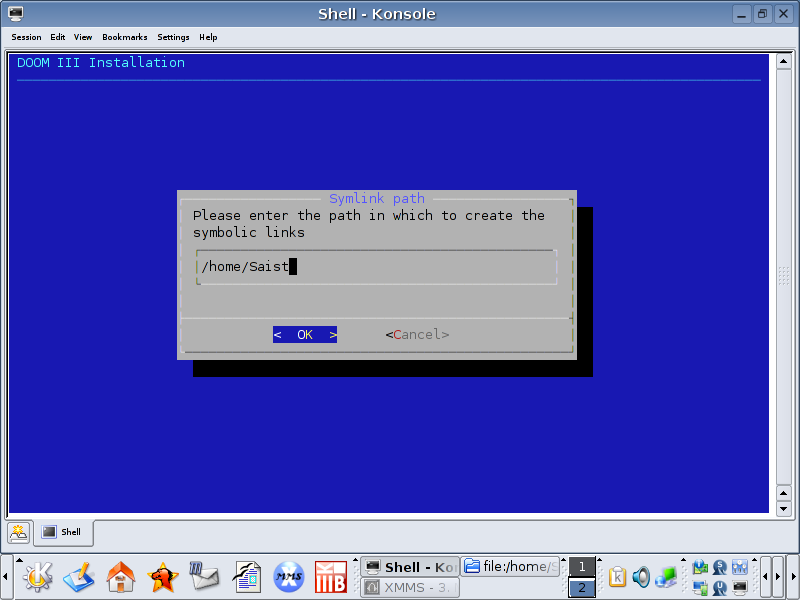 25: Doom3 setup will now ask which components are to be installed. Just hit Enter 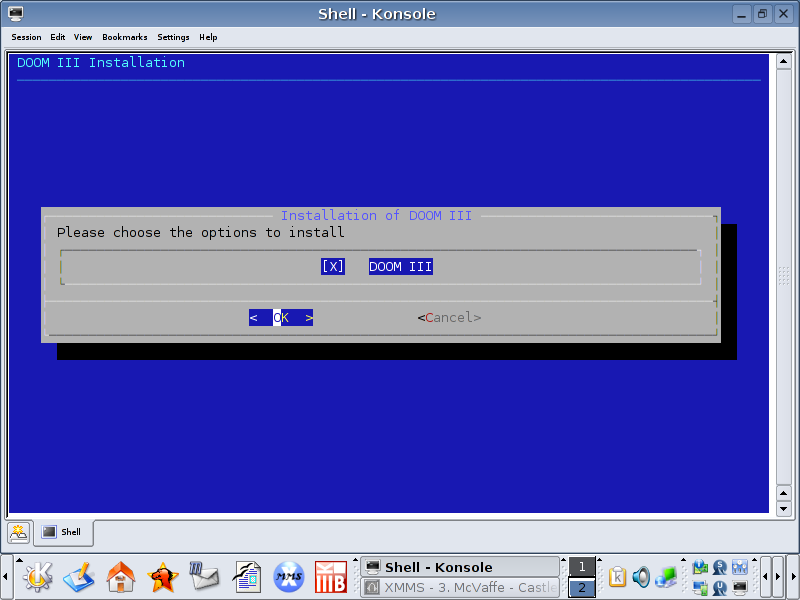 26: Doom3 will now ask if startup menu entries are to be installed. Just hit enter 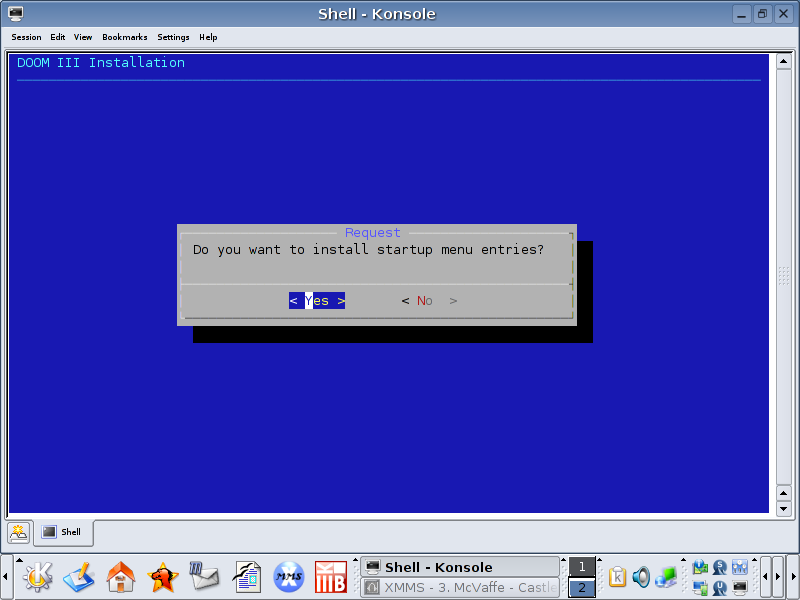 27: At this point, we are waiting for the Doom3 installation to complete. 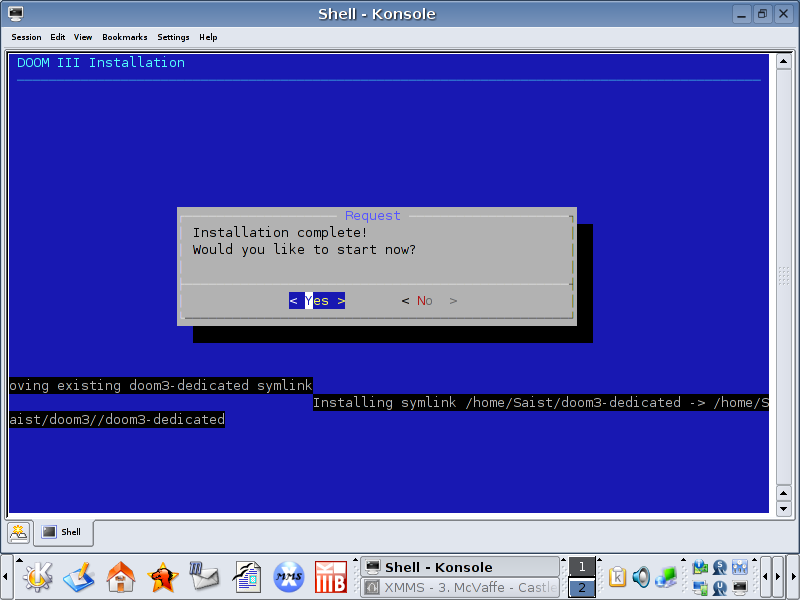 28: Unfortunately, although we'd like to start now, we can't. Hit the left arrow and then Enter 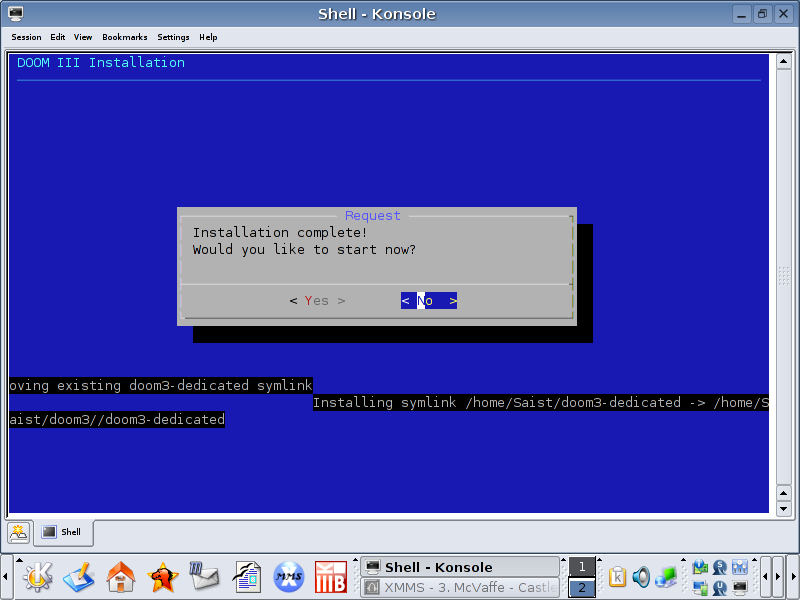 29: Now Doom3 should say that the installation is complete. Close the Konsole. 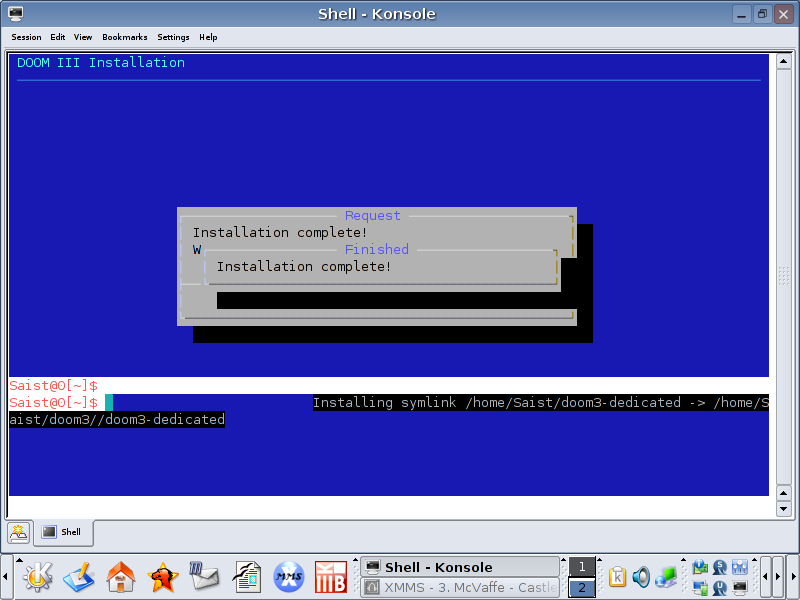 30: Open up Personal Files 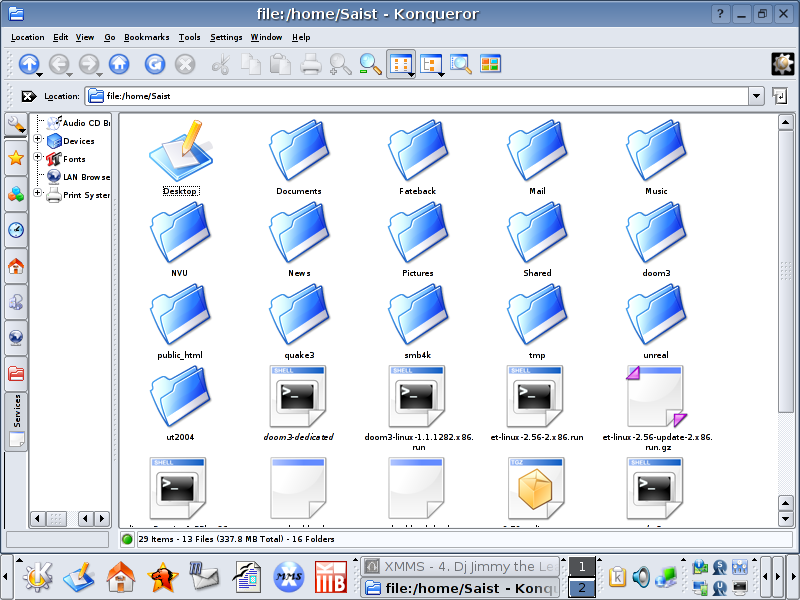 31: We should now have a Doom3 folder. Open the folder. 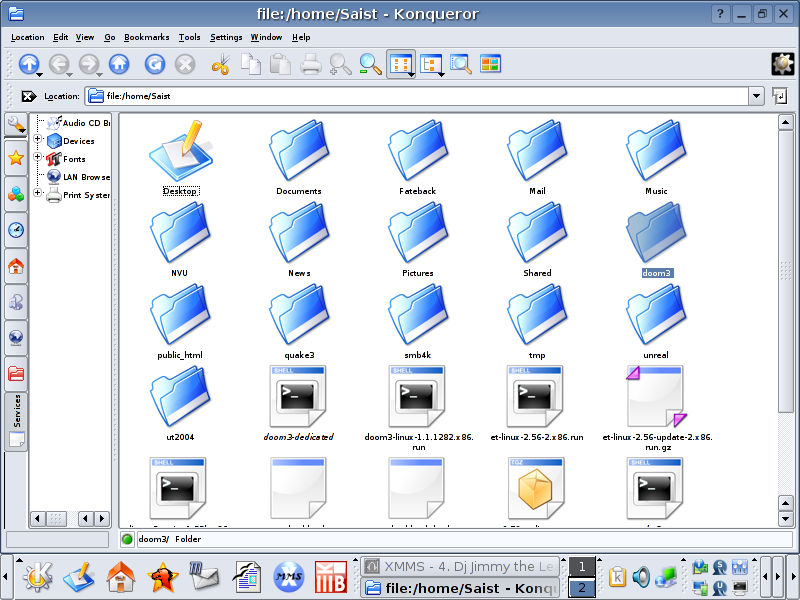 32: Inside the Doom3 folder should be a folder that says base. Open the base folder.  33: Right now there should only be 3 icons in the base folder  34: Put Disc 1 of the Doom3 discs into the CD-Rom, and Open the CD-Rom. ***note*** LEAVE THE HARD DRIVE WINDOW OPEN  35: On the CD we should see a folder labeled Setup. Open the setup folder  36: Inside the Setup folder should be a folder labeled Data. Open Data  37: Inside of data should be a folder labeled Base. Open Base. 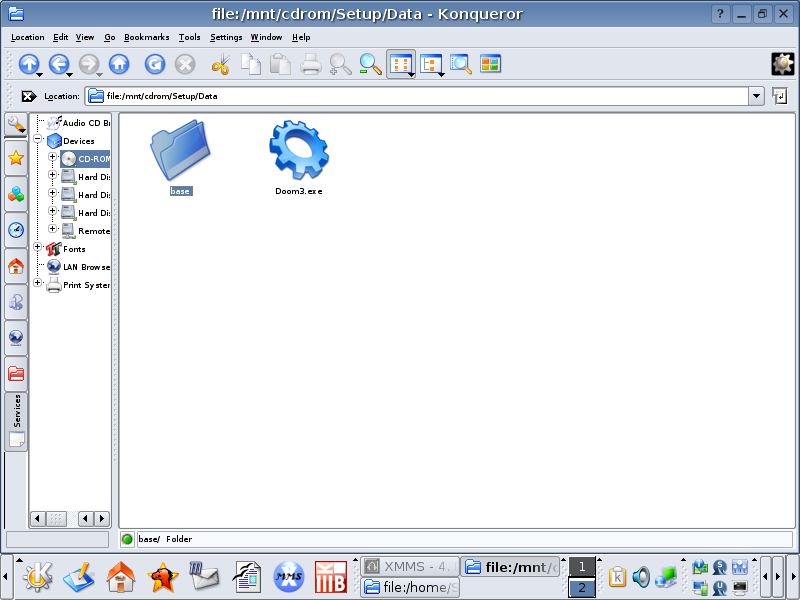 38: There is one file in here we want. pak002.pk4 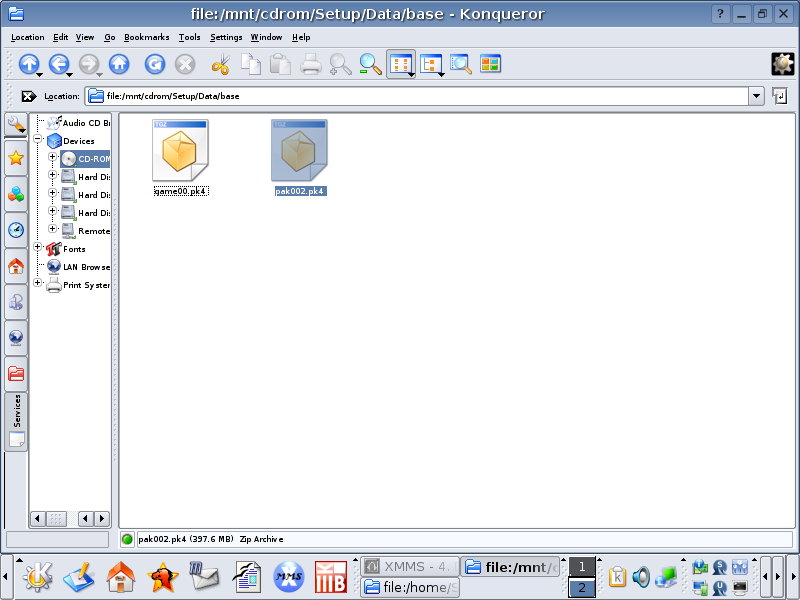 39: Copy pak002.pk4 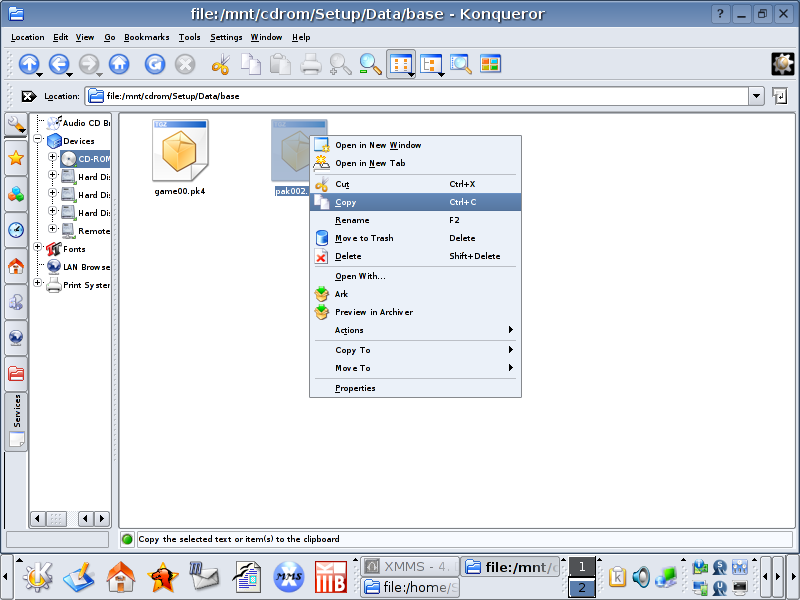 40: Go over to the hard drive window we left open, and paste 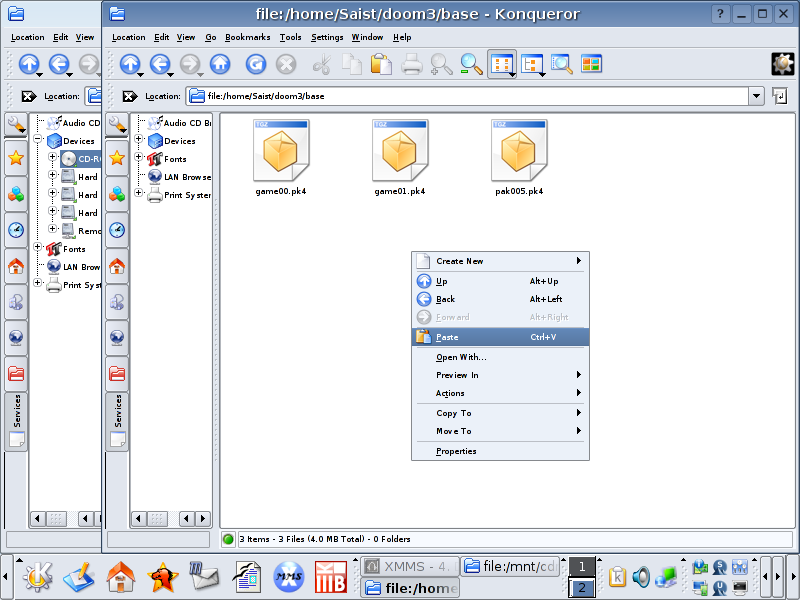 41: Get comfy. This file will take some time to transfer.  42: Once the file completes the transfer, close the CD-Rom window. ***note*** DO NOT CLOSE THE HARD DRIVE WINDOW  43: Right click on the CD-Rom and unmount or eject  44: Once Disc 1 is removed from the drive, put Disc 2 in, and open the CD-Rom  45: Back to Setup  46: Back to Data  Aww, looks like we ran out of time for today's show. Tune in next week as Captain America and the Avengers take on... em... sorry. Wrong line. Anyway's, that's it for Part 2. I think I missed a Step, I wanna go back to Part 1. Forward To the Glory and Fragfest that is Part 3!  |