For : MEPIS Linux
| As I wrote this intro, I
had problems trying to decide what
to say. Everybody, gamer or not, has heard of Unreal
Tournament. It, along with Quake, is one of the best known
First
Person Shooters out there. What more can I say to introduce
the
program? Either you frag it... or you don't. This guide aims at installing the latest in the UT series, Unreal Tournament 2004, onto MEPIS Linux. This is not going to be an easy, even though the install will be completed in GUI systems. This guide will focus on the DVD installation. Those using the CD versions will need to look for the UT2k3 install guide. Installing UT2k4 is much simpler than installing the original UT game. Epic includes the script file needed on the DVD, so lets get started on getting that shell script 1: Go ahead and put the disc in the drive and open the CD-drive up.  2: Right in the DVD there is a linux-install.sh file. Just what we need.  3: Right Click on the file and choose Copy  4: Open up Personal Files and lets Paste our shell script over.  5: There we go. linux-installer.sh is now in our Personal Files. Go ahead and click on the file.  6: The shell script file should not need to be activated from the terminal. It should decompress right there and pop up Epic's License Agreement 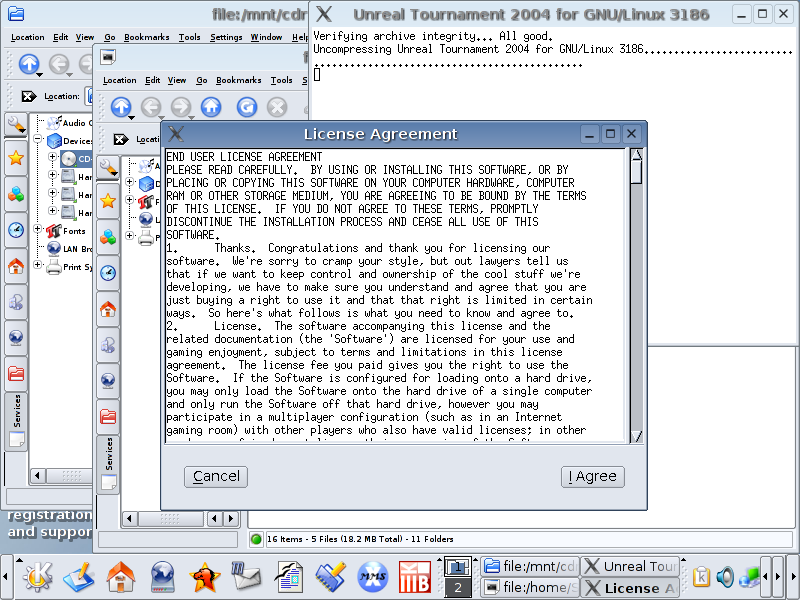 7: Once the agreement is accepted, the screen should pop up with the install guide. Epic decided to go ahead and have the script install unreal to the /home/(yourname) path. Good, we don't need to be in root to do this. Hit begin install 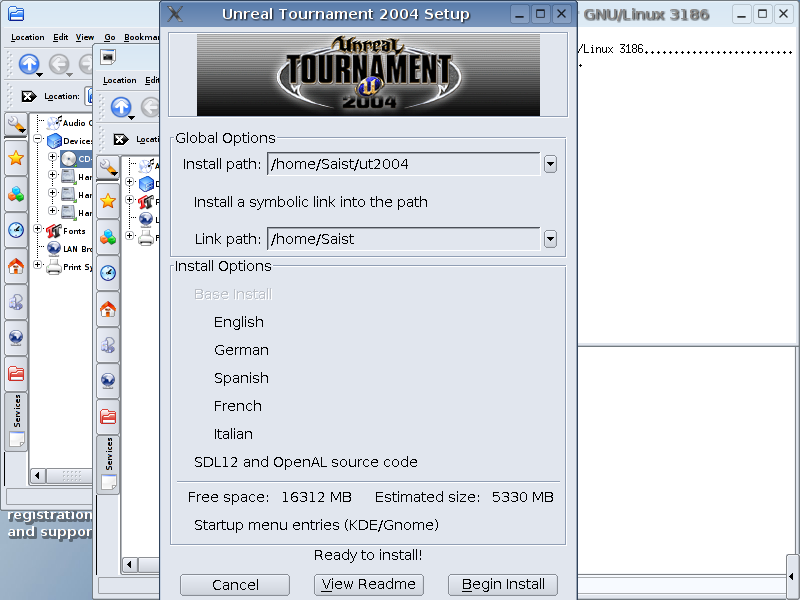 8: Epic's installer will now ask for the CD key. Type it in.  9: Don't worry about text corruption during the install. It happens.  10: Okay, we need to get some work done while the game is installing. Lets go ahead and open up our Mozilla browser.  11: Lets head on over to www.unreal.com and enter the site for Unreal Tournament 2004  12: Scroll down the Unreal Tournament homepage until you see on the right hand side a bar that states What U Need. Under the bar should be a link that says 2004. Click the link.  13: Underneath this we should see Patches : Latest Retail Version Patch. Click on the link to download the latest Linux patch  14: The pop up box should give us some mirrors. I'd just use Atari's official Mirror  15: We want to save the file to the disk  16: And lets put this in our /home/(yourname) Mozilla should default to this for downloads  17: By this time, if we look back to our install, the Install should be complete. Go ahead and exit  18: If we check out Personal Files now, we should note two new items, a file that says ut2004-linuxpatch3323.tar.bz2 as well as a folder that says ut2004  19: Right Click on the ut2004 patch file and choose Ark Ark is Linux's answer to Winzip/Winrar. Remember that  20: Once Ark opens up, click on the button that says Extract  21: go ahead and type /home/(yourname)/ut2004 into the Extract to box and hit OK  22: Once Ark finishes extracting, close it so we are back to Personal Files. Now open up the UT2004 folder  23: In here we should see a folder that says UT2004-Patch. Open that folder.  24: We should now be looking at the patch folders.  25: Select all the folders in the Patch Folder  25: Choose Cut from the right click menu  26: Go back to the Personal Files and Paste  27: We should get a pop-up asking about existing files. Choose overwrite  28: Alright. There's a shell script file in here labled ut2004. Left click and drag that file over to the desktop  29: Release and choose Link Here  30: And there we go. On the desktop. Lets make sure this works.  31: Get the Frag on!   |