|
Nvidia-GLX - Beryl Fix
For : Mepis Linux with Beryl by : je.saist / nlyric This guide is fairly specific to a situation that can occur on Mepis Linux with Beryl. For those who installed the Nvidia drivers and then run dpkg-reconfigure in order to get a display, the Beryl interface probably will not function correctly. Nlyric posted the solution to fix the Beryl interface, so here it is. This Guide has been tested on
Gefore 6800 Mobile | Geforce 7900 GT KO | Geforce 6600 GT | Geforce FX 5200 1: As seen below Kaffeine is missing the title bar and the window liner. This means that the window cannot be resized by the user. 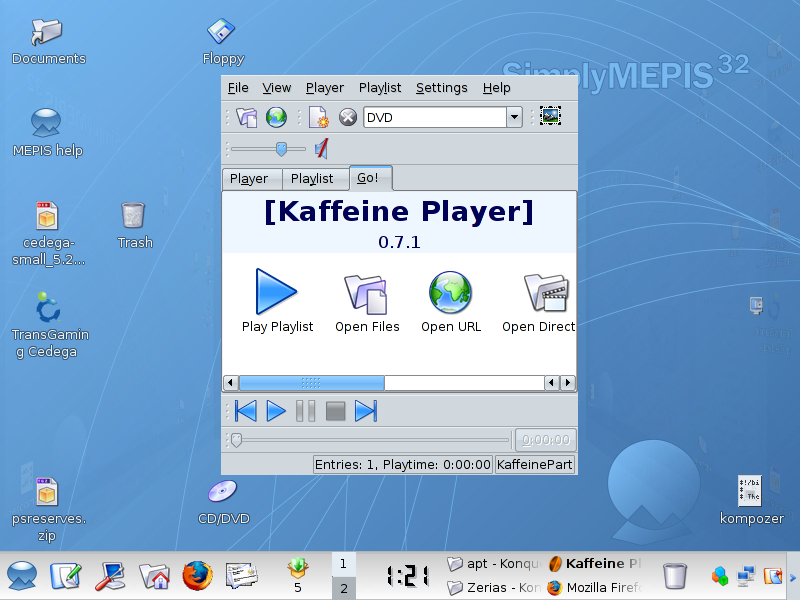 2: This does not mean that Beryl will not work. As shown below some portions of the Beryl Interface are still operational. Windows can be moved, Maximized, and Minimized. 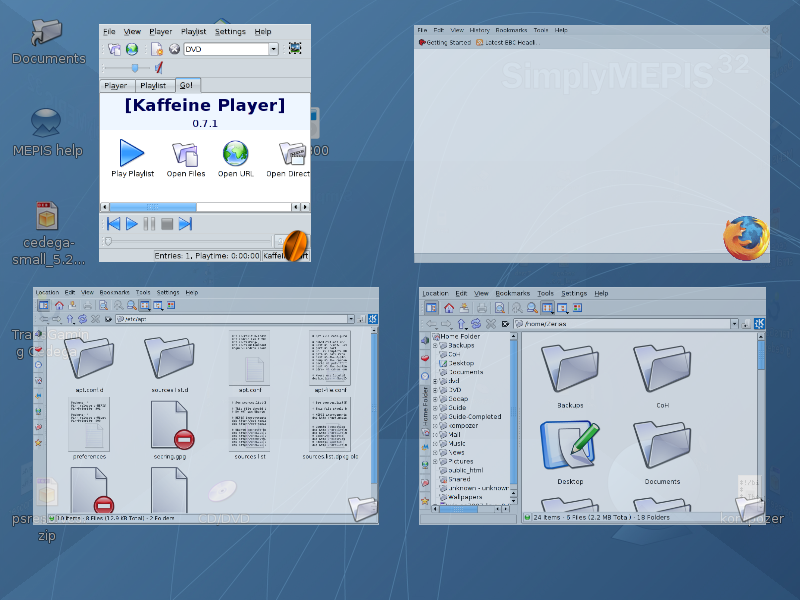 3: The Cube Function also works to an extent. 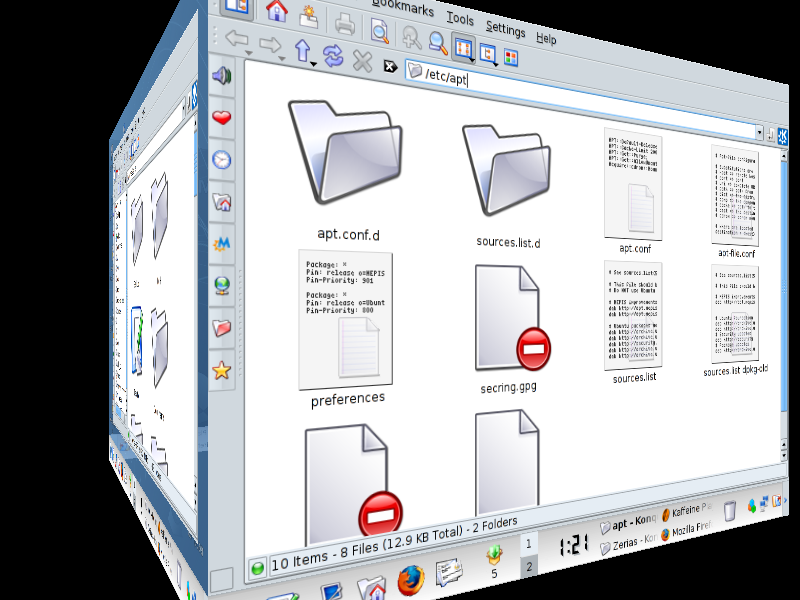 4: To fix this we'll need to enter the /root file browser. Left Click on System in the taskbar. 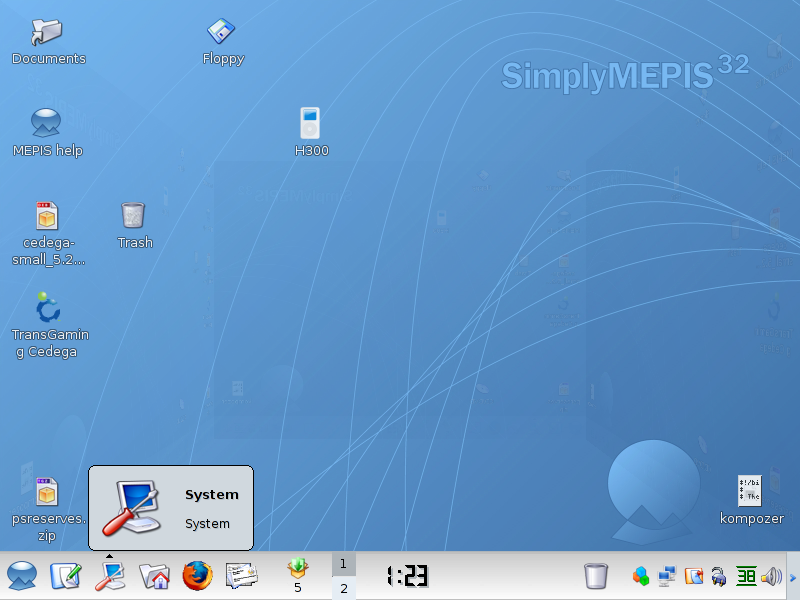 5: Mouse up to File System and Left Click on File Manager - Super User Mode 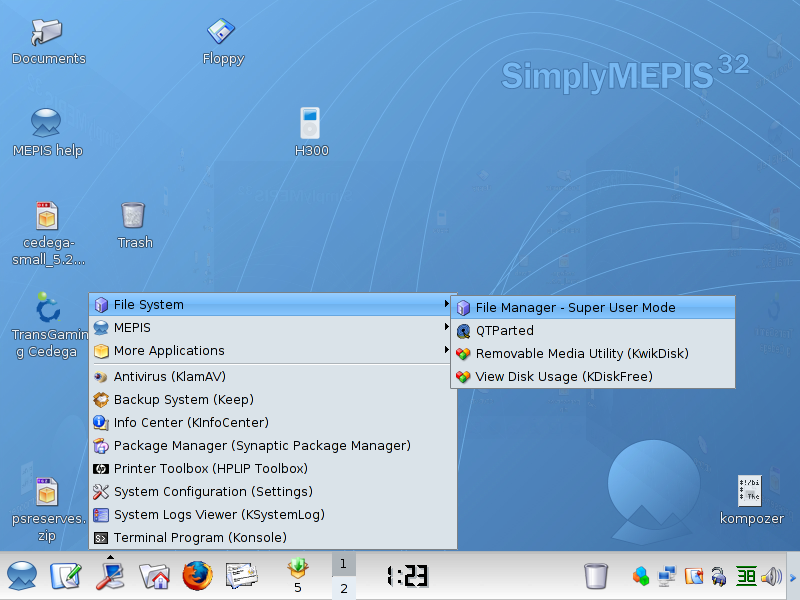 6: Enter the /root password and Left Click on OK  7: Konqueror should default to the /root account. Left Click the up arrow on the address bar  8: We should now be in the / folder.  9: Left Click on etc 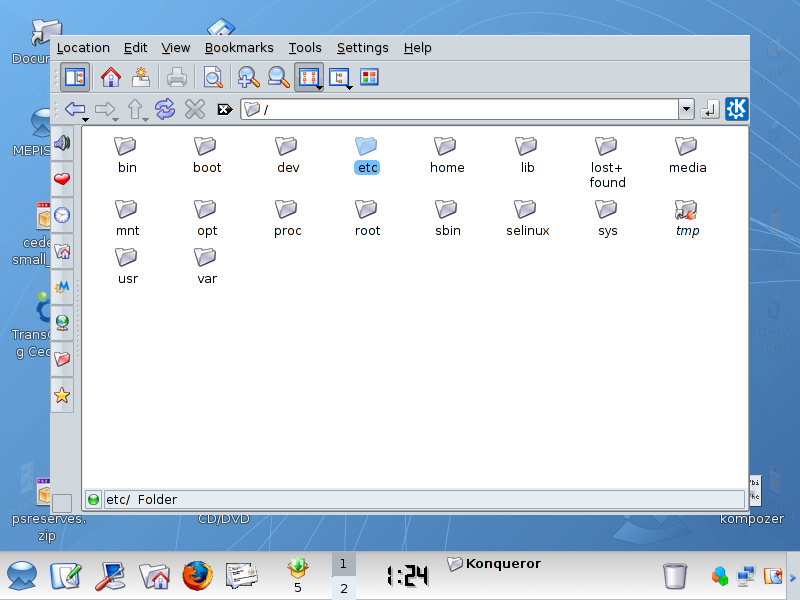 10: Scroll down and Left Click on X11 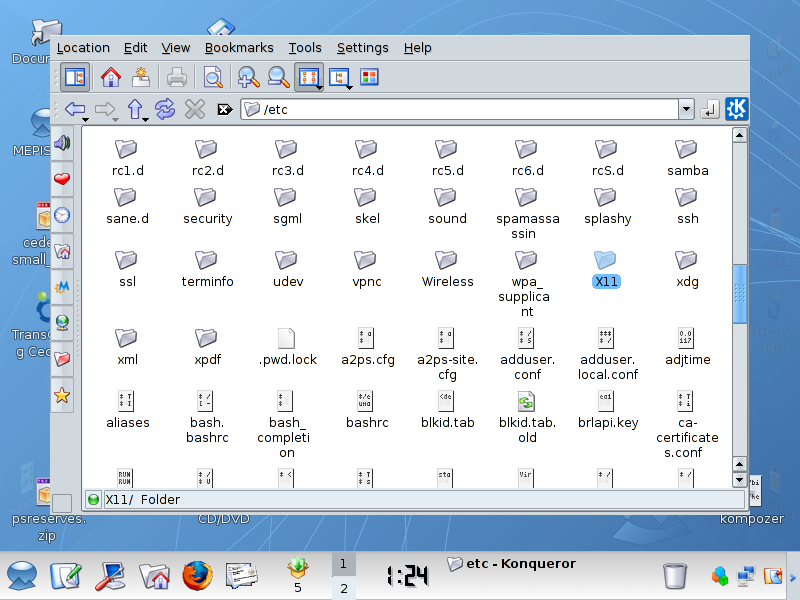 11: We should now be in /etc/X11  12: Left Click on xorg.conf 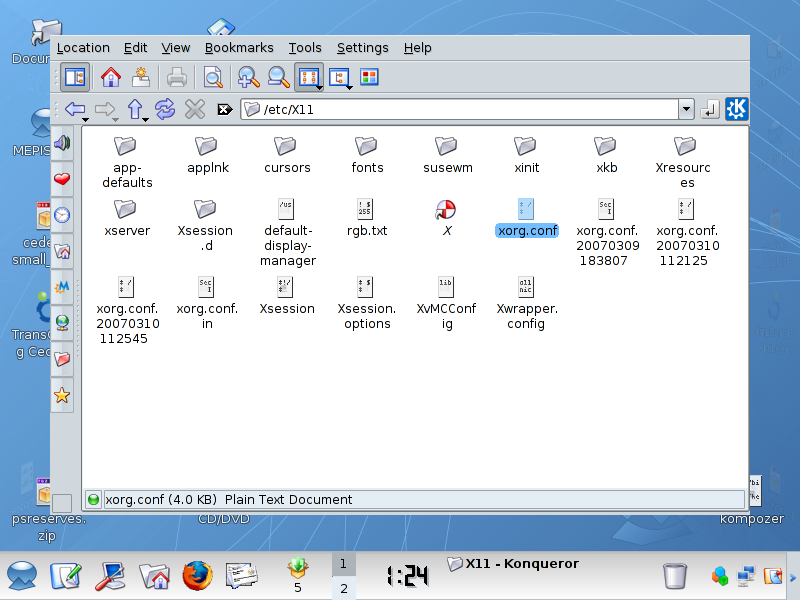 13: To make this page easier to work with I am going to maximise KWrite  14: Maximizing can be achieved by right clicking on Kwrite Then Left Clicking on Maximize 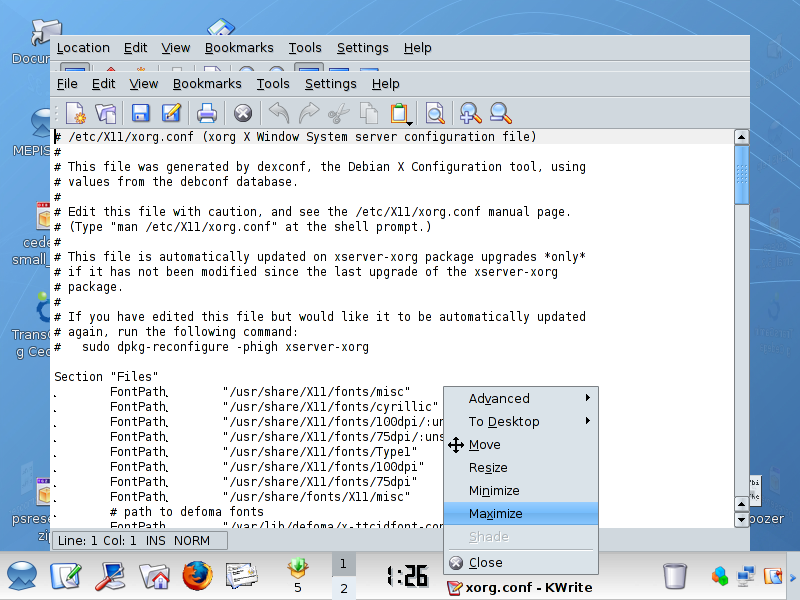 15: With KWrite now maximized I am going to scroll down the config file. 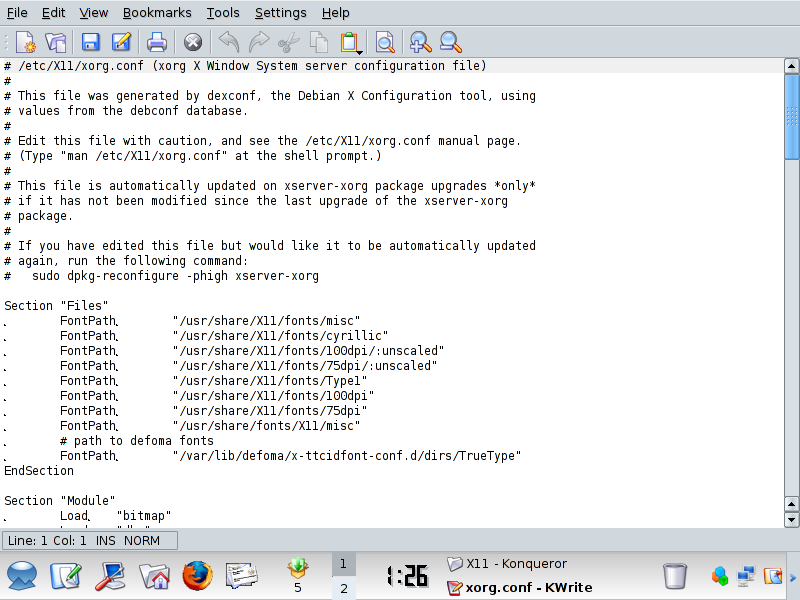 16: We are looking for Section "Device Move the cursor down to EndSection 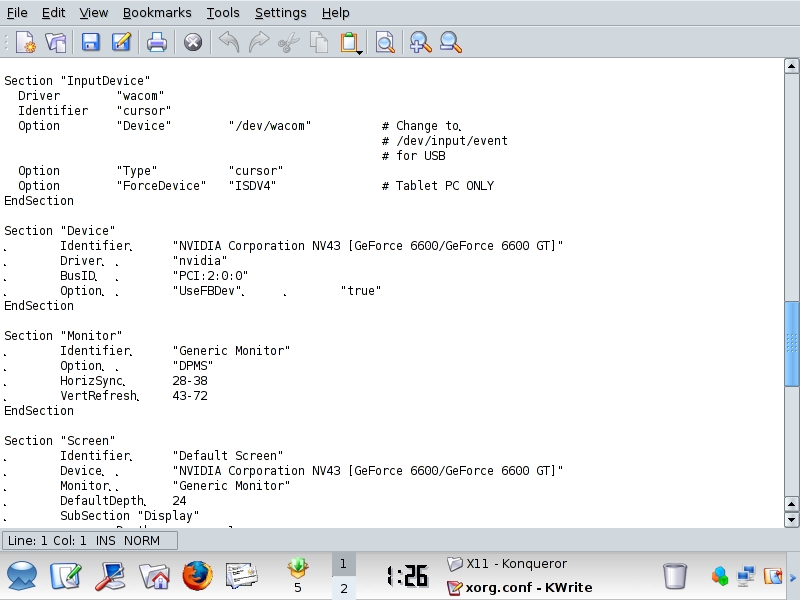 17: Hit Enter on the Keyboard about 3 times. We should have a screen as shown below with a seperation between Option and EndSection 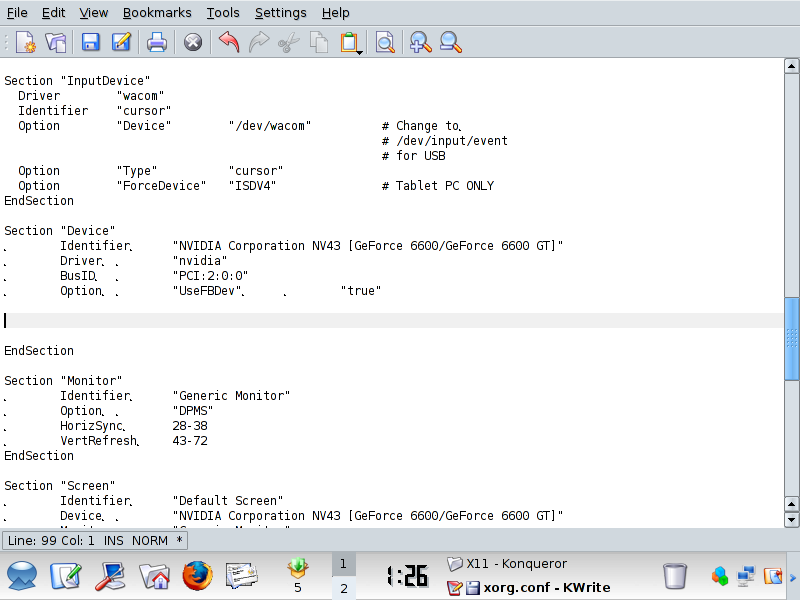 18: Now copy the following Text and paste it into the empty section: ---------------------------------------------------------------------------------- # nvidia special options, use with care
Option "CursorShadow" "1" Option "CursorShadowAlpha" "63" Option "CursorShadowYOffset" "2" Option "CursorShadowXOffset" "4" Option "FlatPanelProperties" "Scaling = native" Option "NoLogo" "false" Option "AddARGBGLXVisuals" "true" Option "RenderAccel" "true" Option "AllowGLXWithComposite" "true" ---------------------------------------------------------------------------------- And the screen should now look like the capture below. 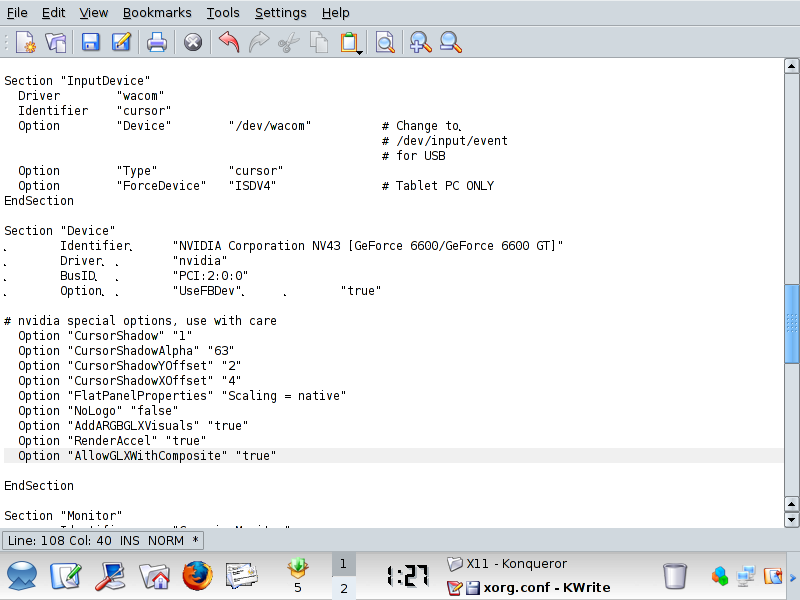 19: Save the changes by clicking on the Save button at the top of KWrite. 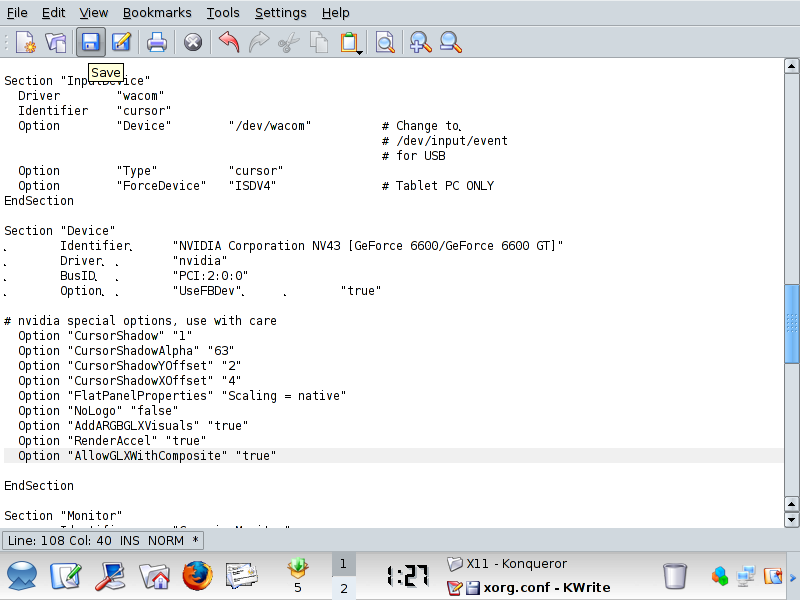 20: Restart the Computer 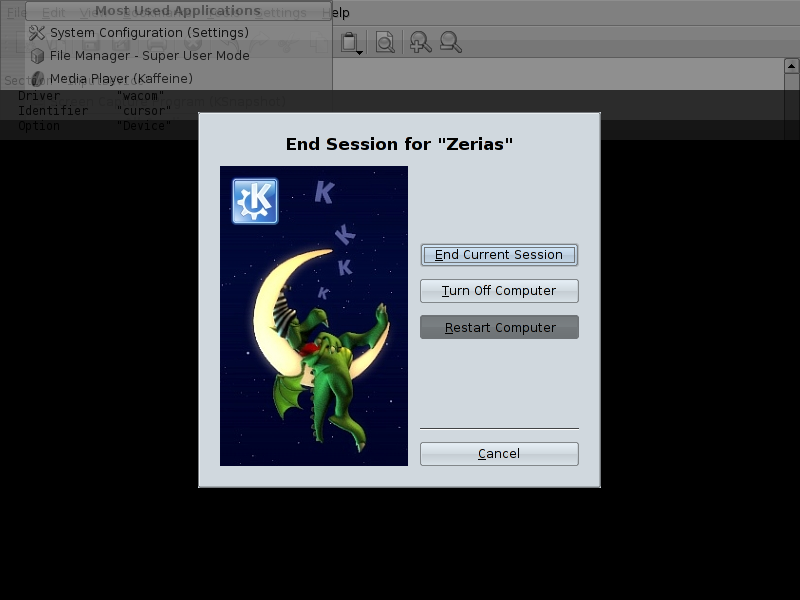 21: And when we load back up, we should now have our title bars. 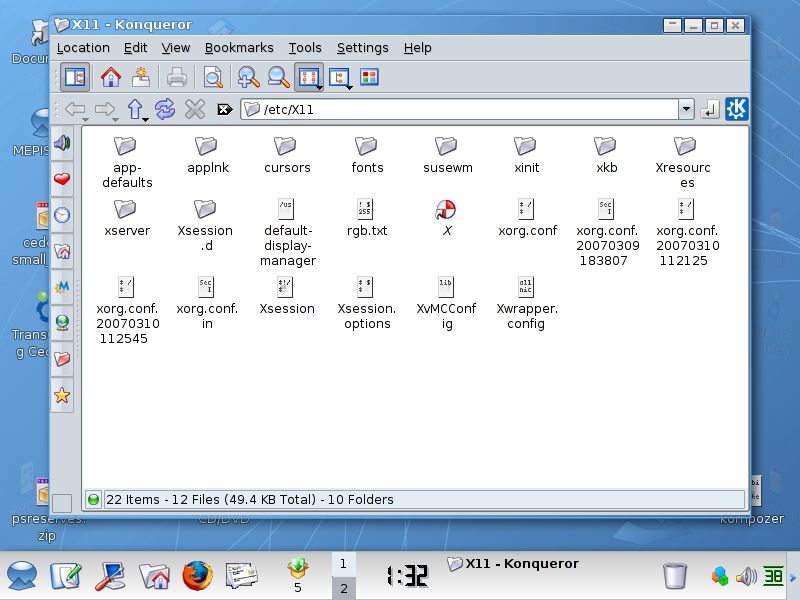 22: The Water effects should work now as well. 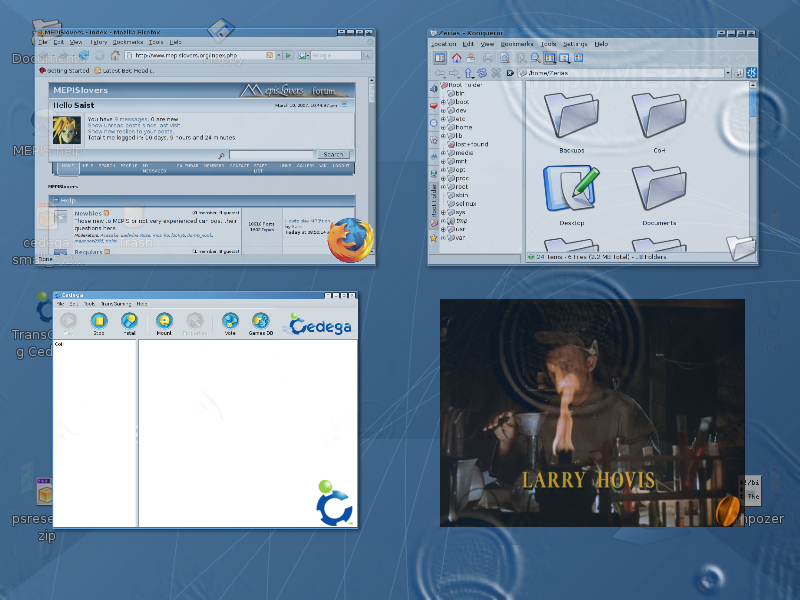 Thank you nlyric. Take me back to the Guides |